
When the inventory is complete, the project is in it's final phase or you have started your internal reuse process, it’s time for the most enjoyable part of all – analyzing your reuse in Palats.
In Analyze you get an overview of all events related to your items, from the initial inventory to reuse within the same project, relocation, sale or reuse via a marketplace. Further down the page, you’ll find links to specific sections about the analysis feature, where you can read more about the available reports and how to interpret events for each item.
We recommend reading more about how to analyze different events in Palats in Analyze – How to Track Events on Articles.
Who is it for?
Analyze is intended for administrators who are responsible for analyzing your reuse in Palats. Either within a project or by tracking your savings in a reuse hub, or a marketplace if you have one.
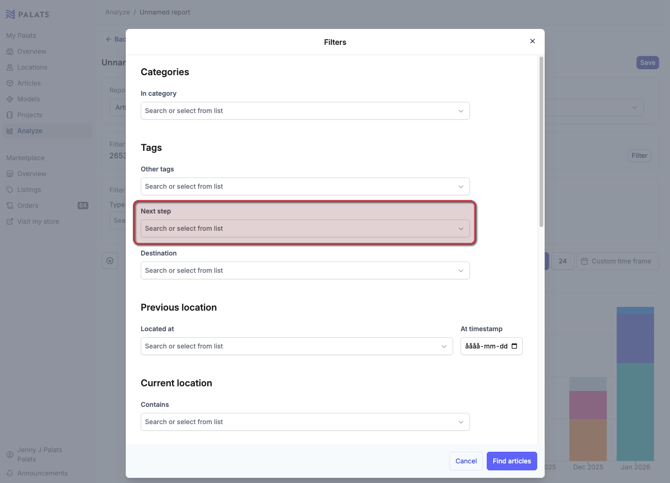
Analyze filtered by tag
If you want to create an analysis filtered by one or more tags you’ve used, you can do so by clicking Filter while viewing a report and then selecting the tags you want to include.
If you want to read more about the different types of reports that are available, you can find this information under Analyze – generate statistics in Palats.
Previous steps
Step 1 – Introduction and Create a Location
Step 2 - How to take inventory